The page editor keeps your changes as a draft until you’re ready, and records a version each time you save — so you can experiment freely and roll back if needed.
Drafts vs published
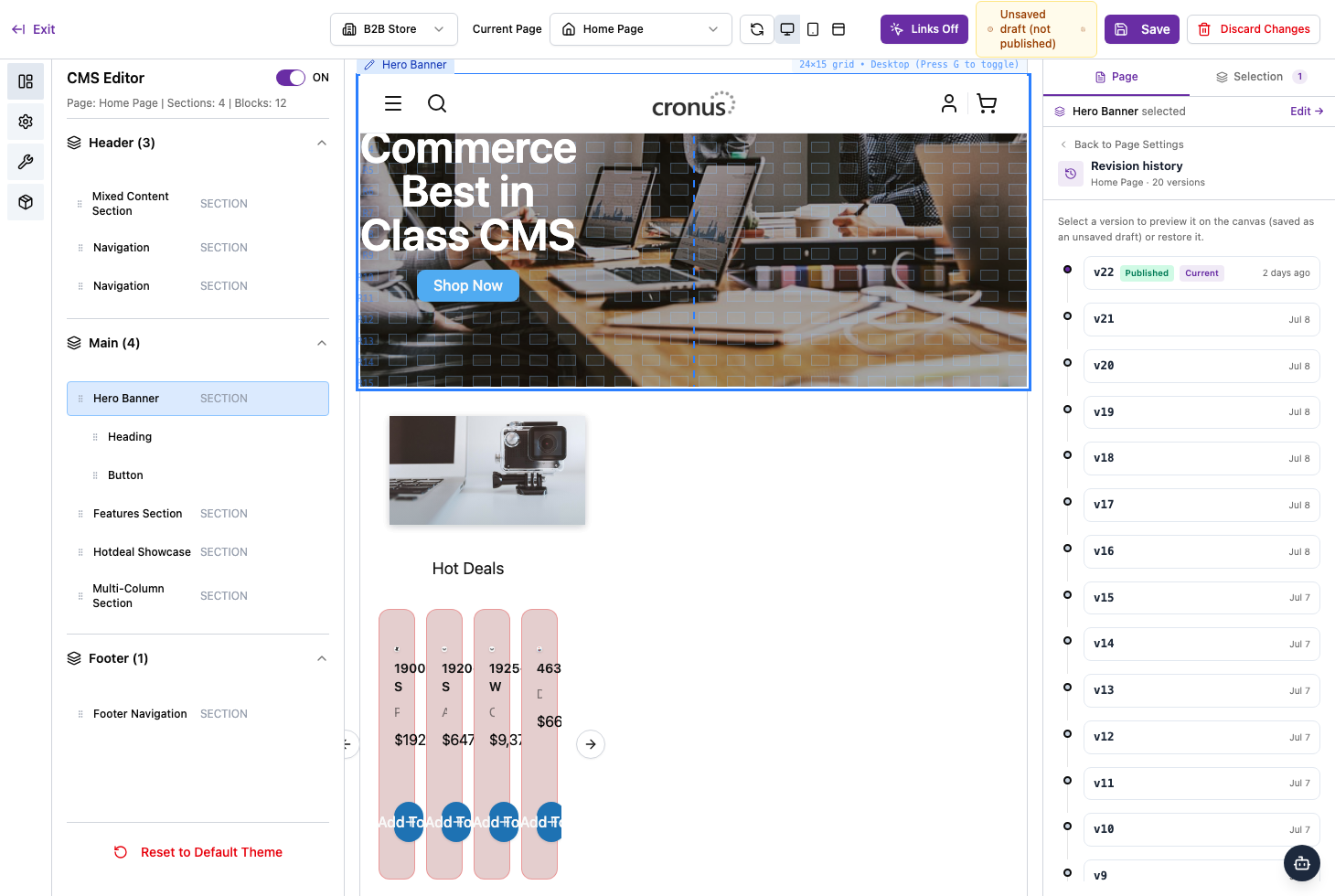
While you edit, your changes are an unsaved draft (the top bar shows an “unsaved draft” indicator). They don’t appear on your live storefront until you click Save. Discard Changes throws the current draft away.
Version history
From the Page tab, open History to see every saved version with its date, including the one that’s currently published. You can review an earlier version and restore it if a change didn’t work out.
Reset to default theme
If you want to start over, Reset to Default Theme returns the page to the default design. As with deleting, this is a big change — but because saving creates versions, you can still roll back from History.
A safe way to work
Make your edits, use the device preview to check them, then Save. If anything looks wrong afterwards, open History and restore the previous version.