The page editor (also called the Theme Editor) is a visual tool for building and styling your storefront pages — the hero banner, product sections, text, layout, and colours — without touching code. You edit on a live preview and nothing goes live until you save.
Opening the editor
Go to your storefront and click the small grid icon in the top-left corner of the page (its tooltip reads “Theme Editor”). The editor opens over your live site.
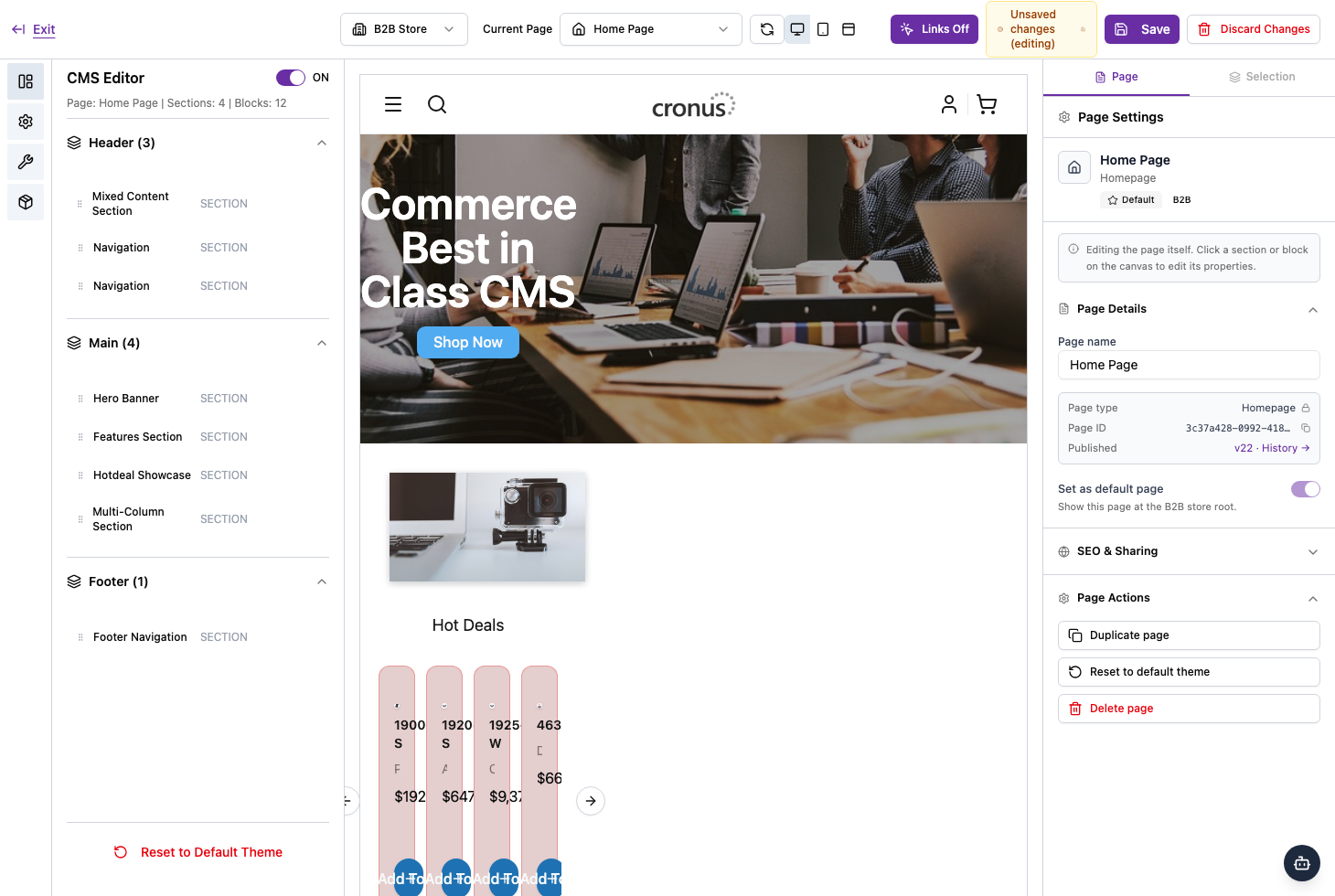
The layout
- Left panel — the page’s structure: its sections grouped into Header, Main, and Footer. A summary line shows how many sections and blocks the page has.
- Centre — a live preview of the page (the canvas).
- Right panel — two tabs: Page (settings for the whole page) and Selection (the properties of whatever section or block you click).
- Top bar — the store selector, page selector, undo / redo, device preview, Links Off, Save, Discard Changes, and Exit.
The top bar controls
- Store & page selectors — choose which store (for example, your B2B store) and which page you’re editing.
- Device preview — switch between desktop, tablet, and mobile to see how the page looks on each.
- Links Off — keeps links from navigating while you edit, so clicking selects an element instead of following the link.
- Save publishes your changes, Discard Changes throws away the current draft, and Exit leaves the editor.
See the related guides for editing sections and blocks, styling, page settings, and version history.