Storefront pages are built from sections, and each section contains blocks. Understanding this structure makes editing straightforward.
Sections and blocks
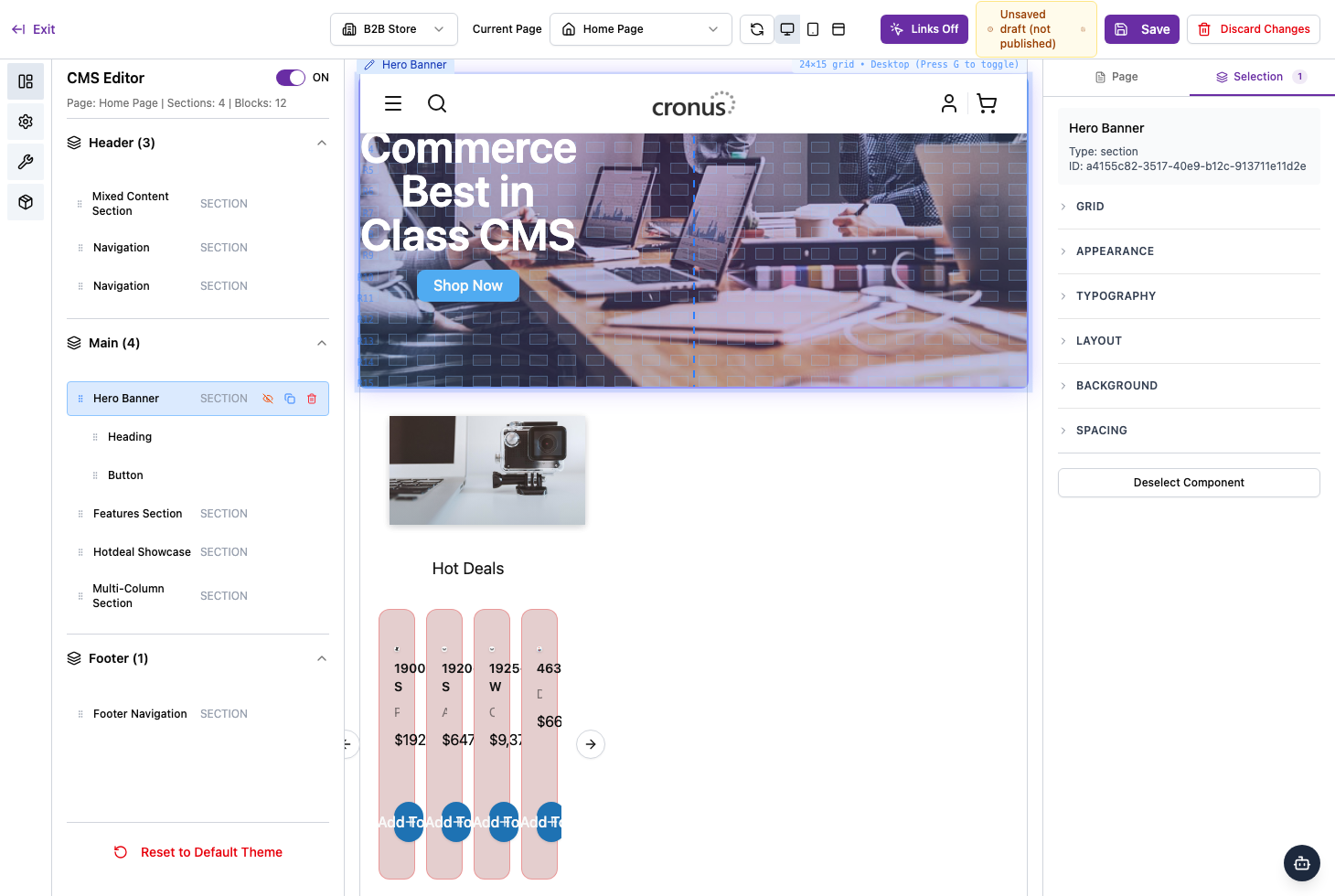
The left panel lists your page’s sections, grouped into Header, Main, and Footer. Common sections include a Hero Banner, Features, a product showcase, Multi-Column content, and Navigation. Inside a section, blocks are the individual pieces — for example a heading or a button.
Selecting something to edit
Click a section or block — either in the left panel or directly on the preview — to select it. It highlights on the canvas and its properties open in the Selection tab on the right.
Moving, duplicating, hiding and deleting
- Reorder — drag a section by its handle to move it up or down.
- Quick actions — a selected section shows small icons to hide it (without deleting), duplicate it, or delete it.
Adding a section
Hover between sections and click the + Section control that appears, then choose the type of section you want to add. The new section drops into place, ready for you to select and style.