This is where you manage the people who log in to your storefront: individual store users, and the groups that control what each user can see and do. It covers your shoppers and B2B customer logins — staff / site-admin accounts are managed in a separate area.
Where to find it
In your v5 admin, open the Customers area (Manage Store Users). Across the top you’ll see tabs for Manage Store Users, Store User Groups, ERP Customers, and customer / ship-to attributes.
The store users list
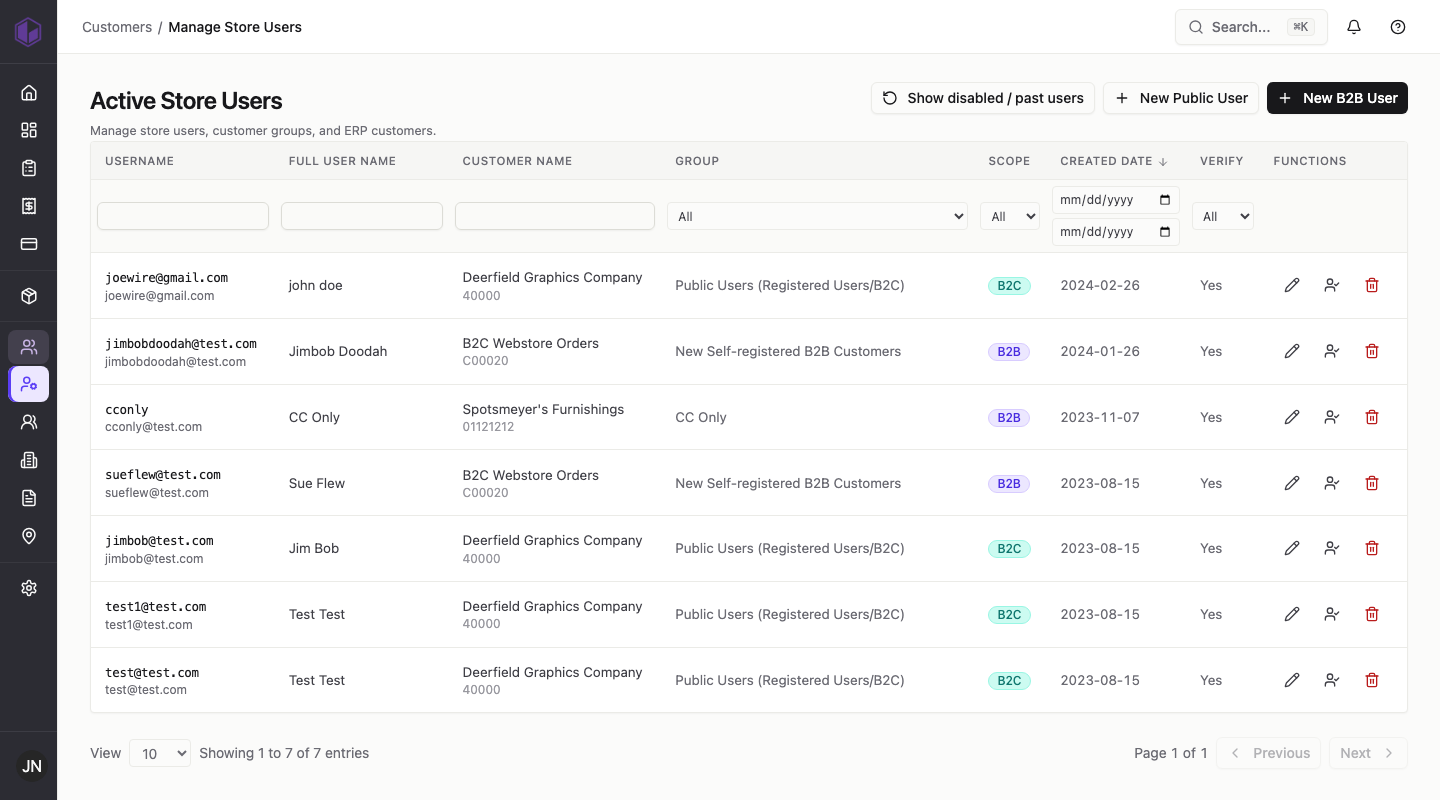
The list shows each user’s username, name, the customer they’re linked to, their group, their scope (B2B or B2C), and whether their email is verified. The filter row lets you narrow by name, customer, group, scope, or date, and Show disabled / past users reveals accounts that have been switched off.
Adding a store user
There are two buttons, for the two kinds of account:
New Public User (B2C)
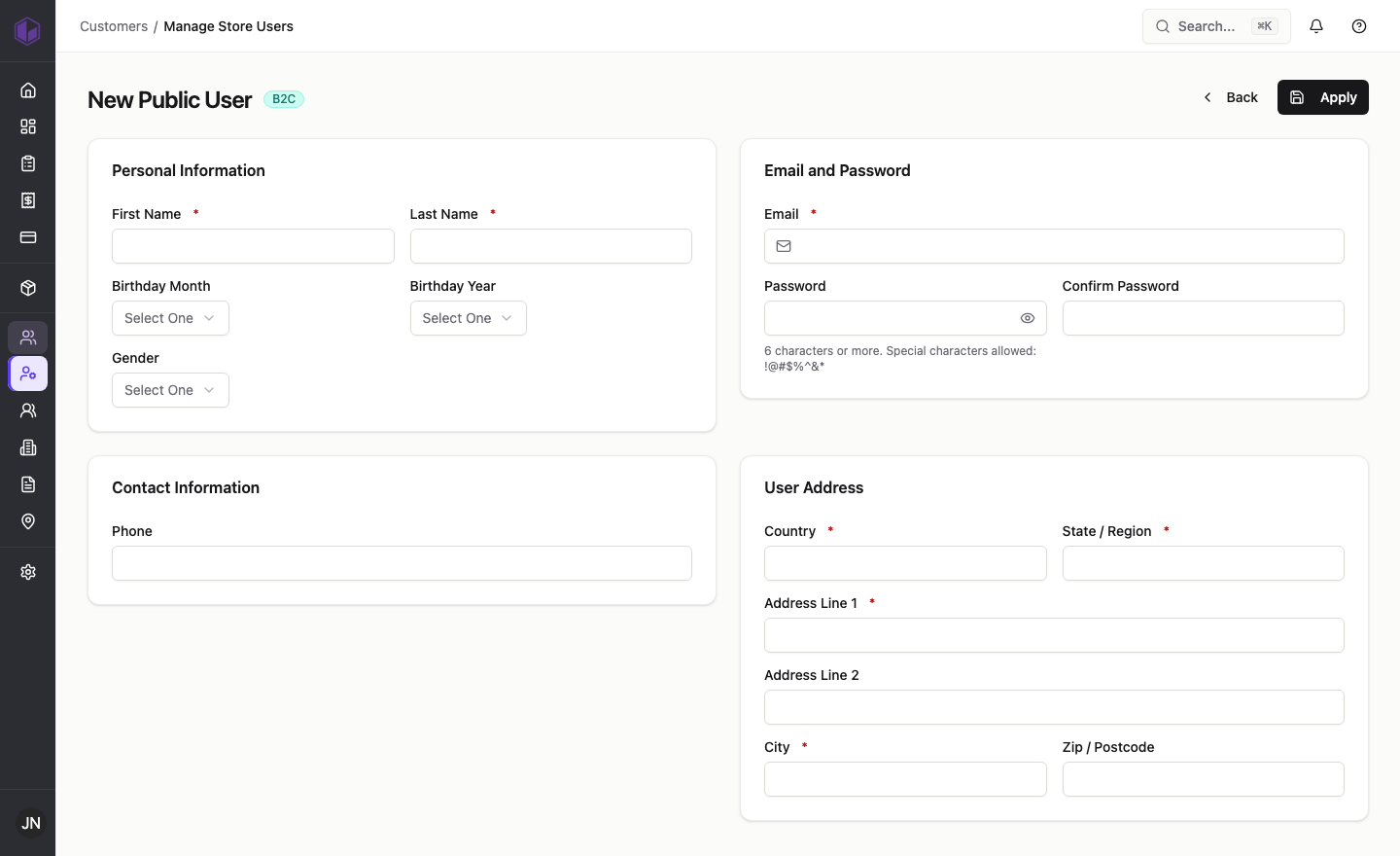
For an individual, retail-style shopper. You enter their name, email and phone, plus a shipping address (country, state/region, address, city, postcode).
New B2B User
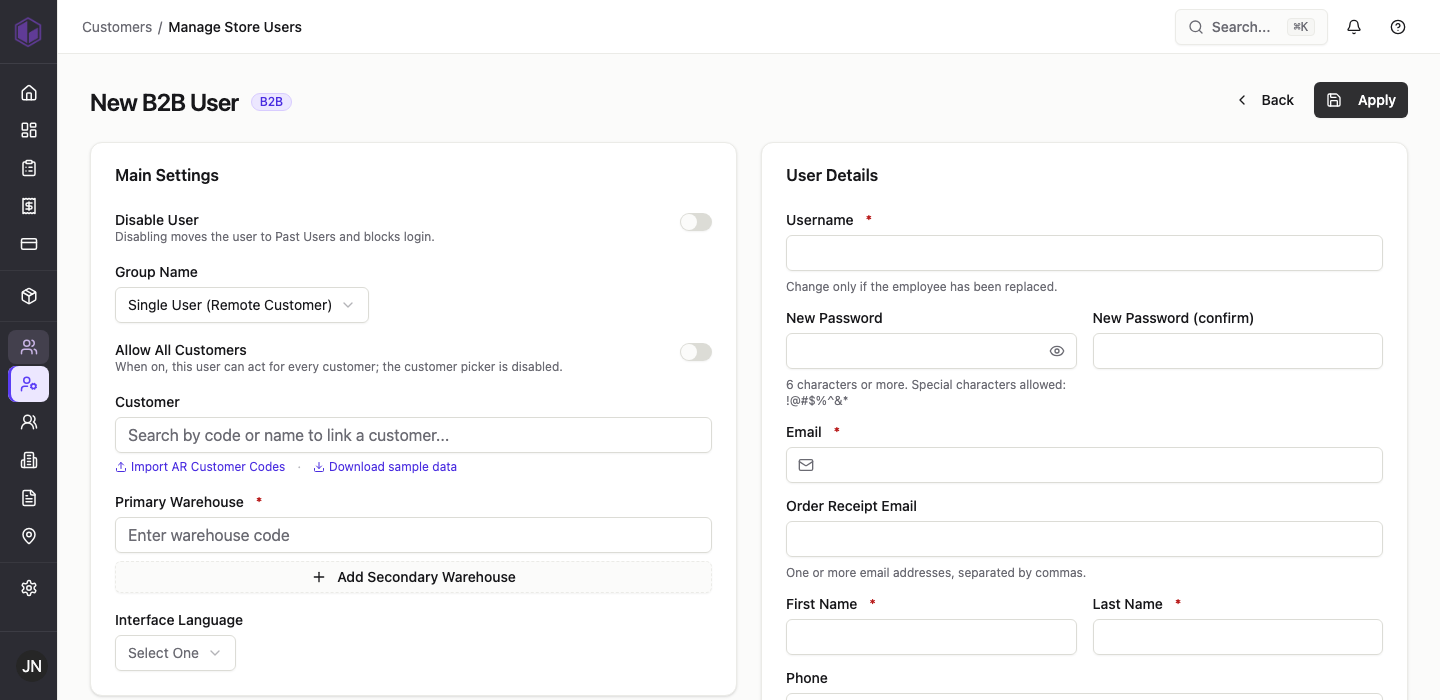
For a business login tied to a customer account in your ERP. In addition to name, email and phone you set:
- Username and a password.
- Customer — the ERP customer this login belongs to (search by code or name).
- Group Name — the permission group that decides what this user can do (see below).
- Primary warehouse (and an optional secondary) for stock and shipping.
- Order receipt email and interface language.
- Disable user (moves them to past users and blocks login) and Allow all customers (lets the user act for every customer, not just the linked one).
Store user groups (permissions)
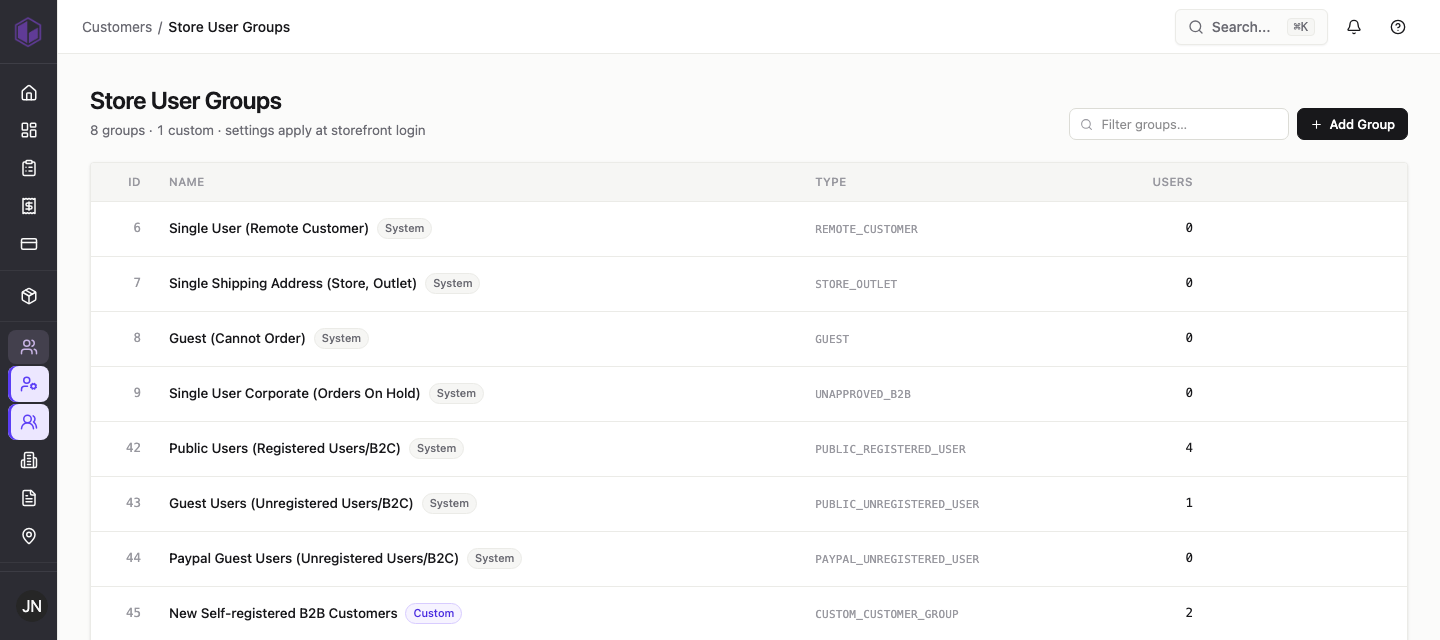
A group is a reusable set of permissions you assign to users through the Group Name field above. Manage them under the Store User Groups tab — use Add Group to create one, Edit to change it, and Policy to review its settings.
When you create or edit a group, the options are organised into clear sections:
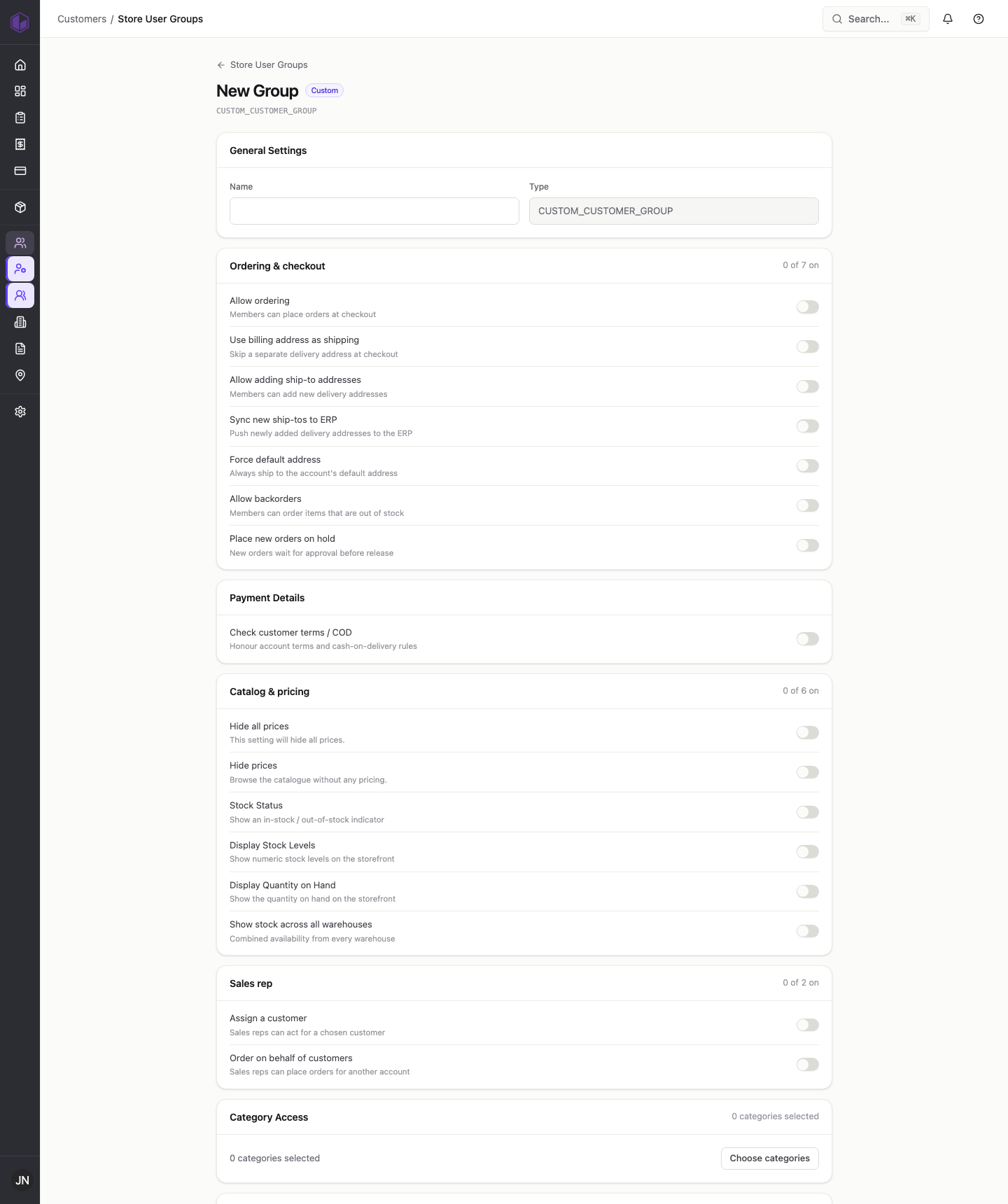
- General — the group’s name.
- Ordering & checkout — whether members can place orders, add delivery addresses, use the billing address as shipping, order out-of-stock items (backorders), or have new orders held for approval.
- Payment details — honour the account’s terms and cash-on-delivery rules.
- Catalog & pricing — whether prices are shown or hidden, and how stock appears (in / out indicator, numeric levels, quantity on hand, or combined across all warehouses).
- Sales rep — let members act for a chosen customer, or place orders on behalf of other accounts.
- Category access — limit the group to specific product categories.
- Admin privileges — grant back-office access (catalog, customers, ERP, marketing, promotions, reports, sales, system, and more) for staff-type accounts.
Click Save Changes to apply. Tip: it’s usually easiest to set up your groups first, then assign the right group as you add each user.