Promotions let you offer discounts to your customers — a percentage or fixed amount off an order, free shipping, a deal on specific products, or a “buy X, get Y” offer. This guide explains where promotions live in your commercebuild v5 admin and the settings you will see. The step-by-step guides for each type are linked at the end.
Where to find promotions
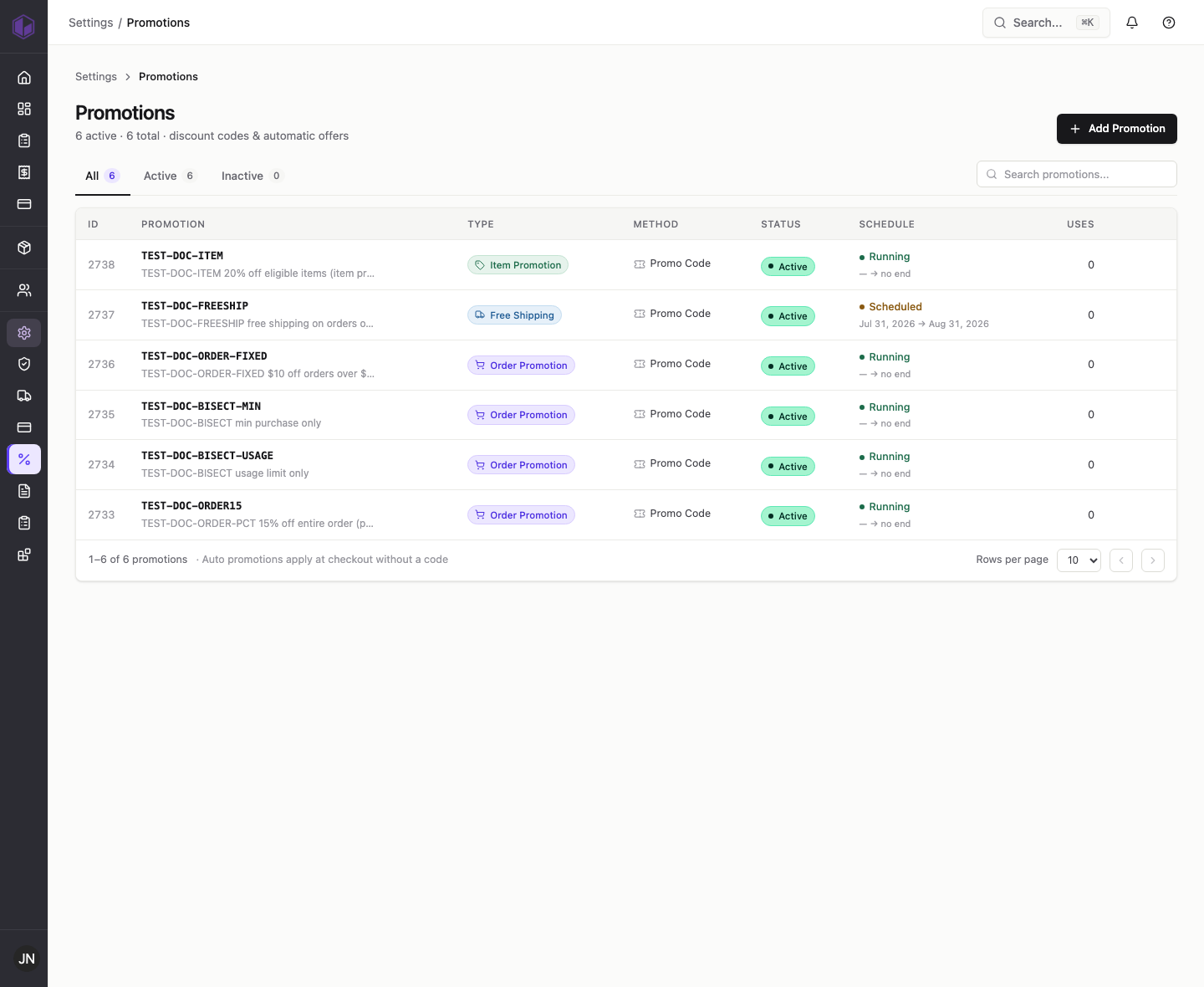
In your v5 admin, go to Settings › Promotions. You will see a list of every promotion you have created, with its status and schedule. Use the All, Active and Inactive tabs to filter, or the search box to find one by name.
The four promotion types
When you click Add Promotion, the first choice is the Promotion Type. commercebuild v5 offers four:
- Order promotion — a percentage or fixed amount off the whole order.
- Item promotion — a discount that applies only to specific products or categories.
- Buy X Get Y — the customer buys certain items and gets other items free or discounted.
- Free shipping — waives shipping, optionally above a minimum spend.
Promo code or automatic
Every promotion uses one of two methods:
- Promo code — the customer enters a code at checkout to get the discount. You choose the code (for example, SUMMER2025).
Automatic offers (feature has a known issue)
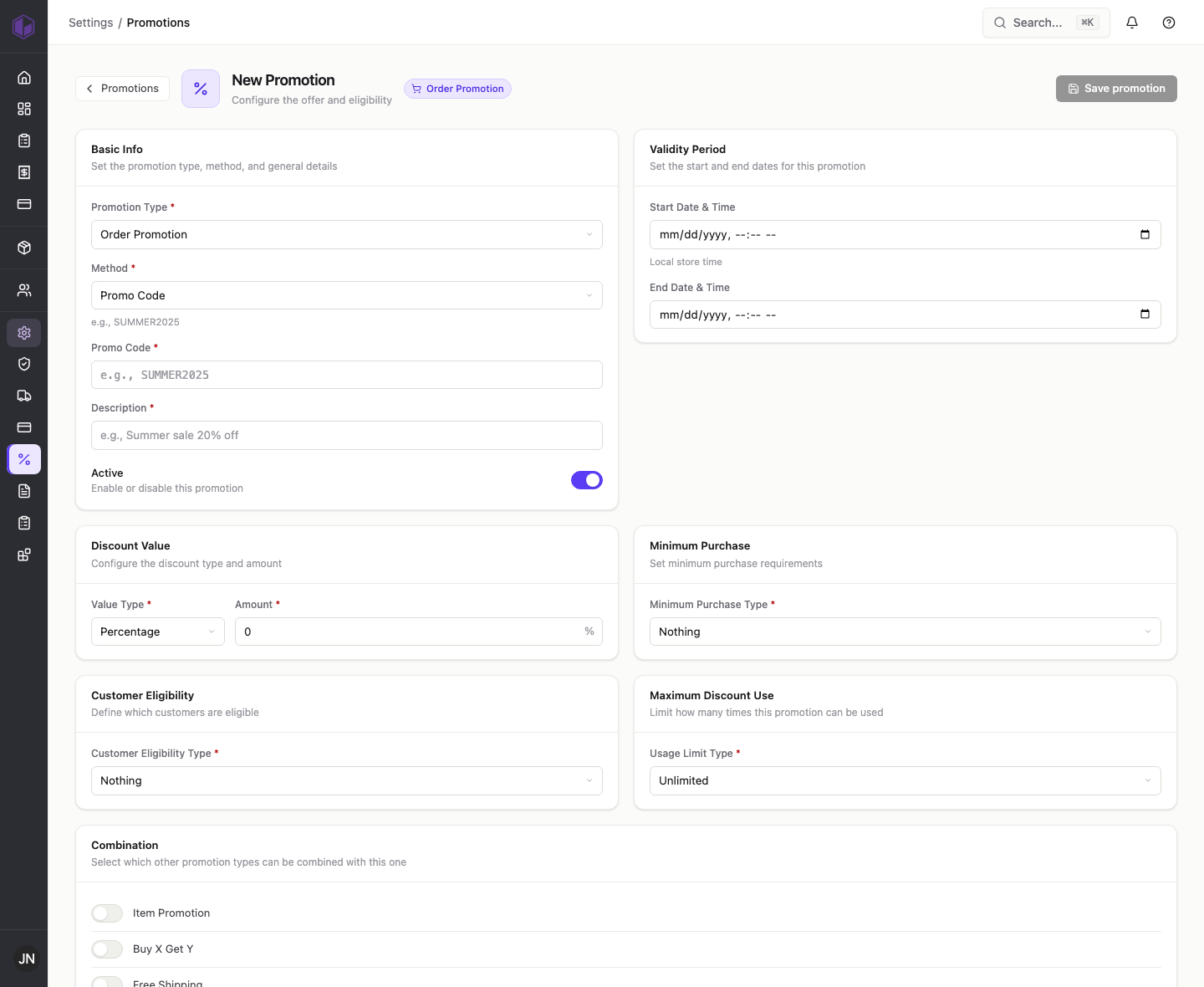
An automatic promotion applies at checkout on its own, with no code for the customer to enter — useful for store-wide sales. You choose this by setting Method to Auto Promo; the promo code box disappears.
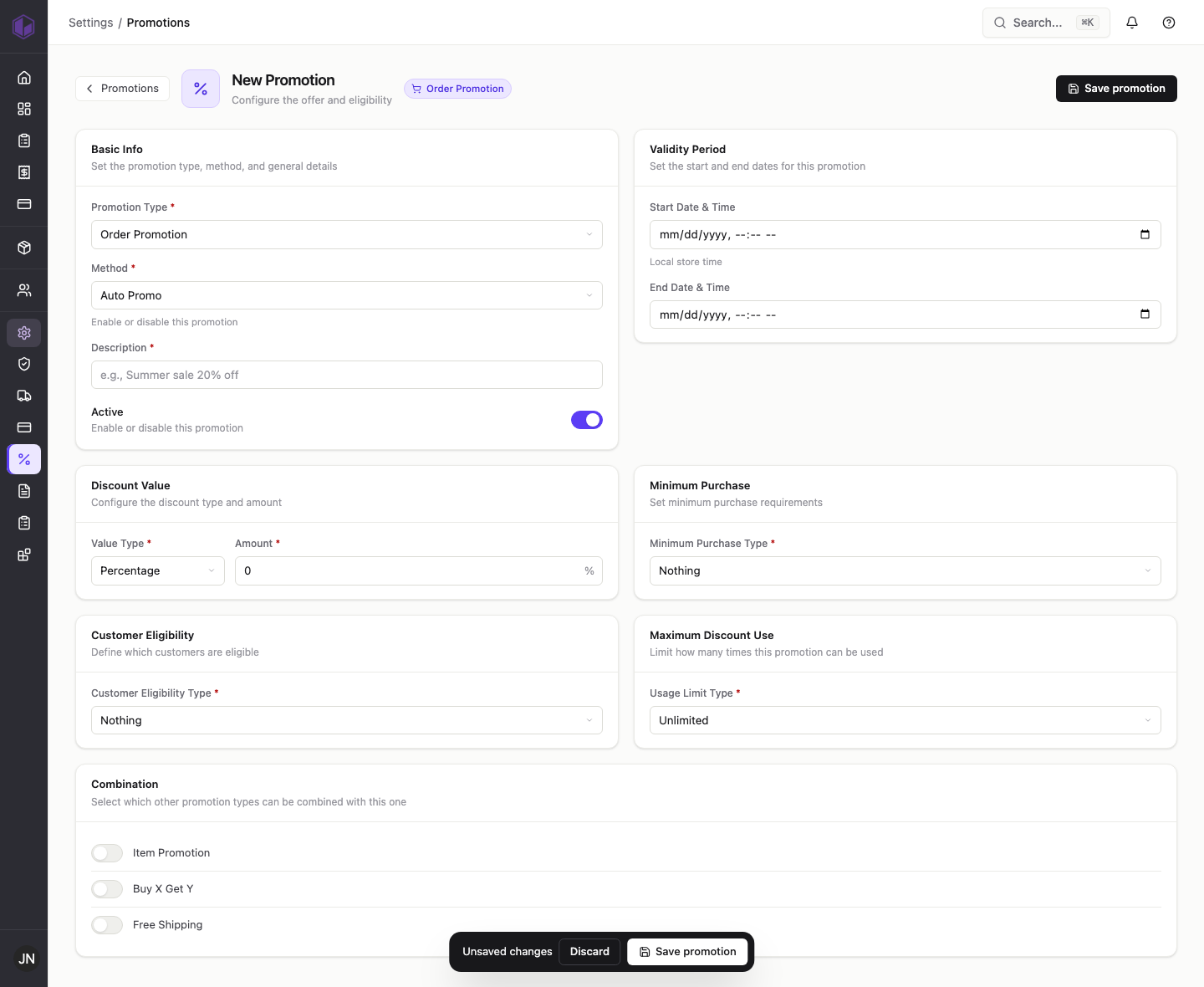
Note: automatic promotions are being finished and are not ready to use yet. For now, please create promotions using a promo code. See the internal notes below.
Settings you will see on most promotions
Depending on the type, a promotion can include:
- Description — a short label so you and your team recognise the promotion.
- Active — turn the promotion on or off.
- Validity period — an optional start and end date and time (in your local store time). Leave blank to run with no end date.
- Discount value — a percentage or a fixed amount, plus the number.
- Minimum purchase — require a minimum order amount, or a minimum quantity of items, before the promotion applies.
- Customer eligibility — limit the promotion to an individual customer, a customer group, or a user group.
- Maximum discount use — how many times the promotion can be used: unlimited, once per customer, or a set number of total uses.
- Combination — choose which other promotion types are allowed to stack with this one.
Step-by-step guides
Ready to create one? See: How to create an order promotion · How to create a free shipping promotion · How to create an item promotion · How to create a Buy X Get Y promotion.
Internal notes (support team)
- Automatic offers are broken. With Method = Auto Promo, the Save button is enabled but clicking it does nothing — no save, no page change, and no error message. Confirmed by isolation testing (the identical promotion saves fine as a promo code) and by network capture (no save request is sent). Adding a validity window does not help. This blocks the entire “automatic offers” half of the feature. Repro: TEST-DOC-BISECT (auto promo only) — did not save.