An item promotion discounts only the products you choose, rather than the whole order — for example, “20% off selected products.” You can target a list of specific products or a whole category.
Steps
- Go to Settings › Promotions and click Add Promotion.
- Set Promotion Type to Item Promotion.
- Set Method to Promo Code and enter a code; add a Description.
- Under Discount Value, choose Percentage or Fixed Amount and enter the number.
- Under Item Eligibility, choose how to target products:
- Item List — pick individual products.
- Item Category — apply the discount to a category of products.
- Choose the products (feature has a known issue). A search box appears — type part of a product’s name to find it, then select it from the results. See the internal notes about how this search currently behaves.
- Optional: set a minimum purchase and a validity period.
- Make sure Active is on and click Save promotion.
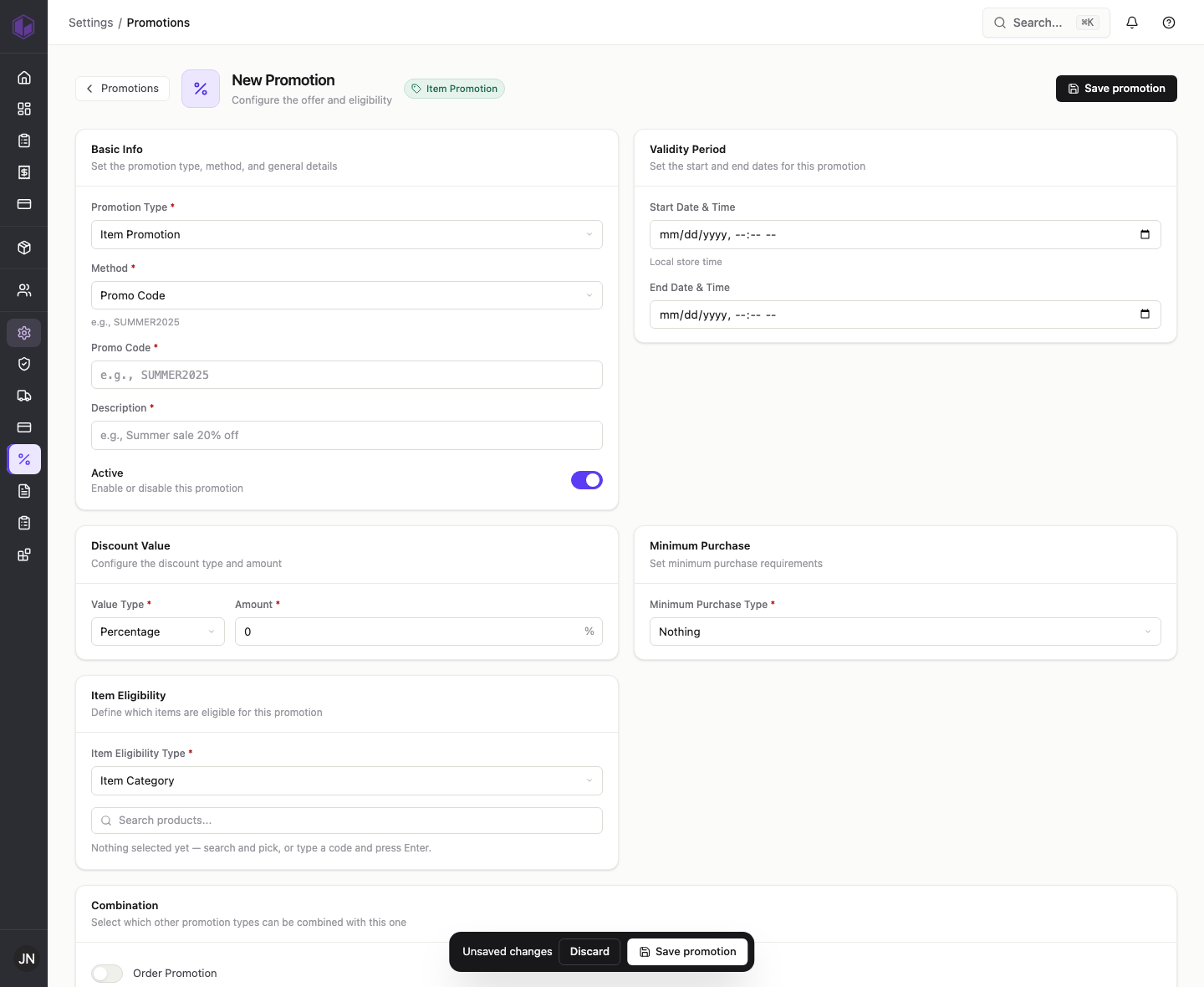
The discount will apply only to the products (or category) you selected.
Internal notes (support team)
- Product picker — search by name, not code. The box hint says “type a code and press Enter,” but searching by item code returns no results (the search endpoint returns an empty list for a valid code such as AV009). Searching by a word from the product description does return results from the server. The hint text is misleading and should say to search by product name/description.
- Results do not appear to select. In automated testing, even when the server returned matching products (for example, searching “kit”), no selectable results rendered in the picker, so an item could not be added. This needs a quick manual confirmation in a normal browser; if it reproduces, item and Buy X Get Y promotions cannot be fully configured. Repro: TEST-DOC-ITEMLIST.
- Saves with no items selected. An item promotion saved successfully with no product or category actually chosen — there is no validation requiring at least one item. Repro: TEST-DOC-ITEM (Item Category, nothing selected).
- Minor: under Item Category, the search box placeholder still reads “Search products…” (should say categories). Minor: the product search box only appears after you actively select the Item Eligibility Type.