A Buy X Get Y promotion rewards customers who buy certain items with other items free or discounted — for example, “buy two, get one free.”
Steps
- Go to Settings › Promotions and click Add Promotion.
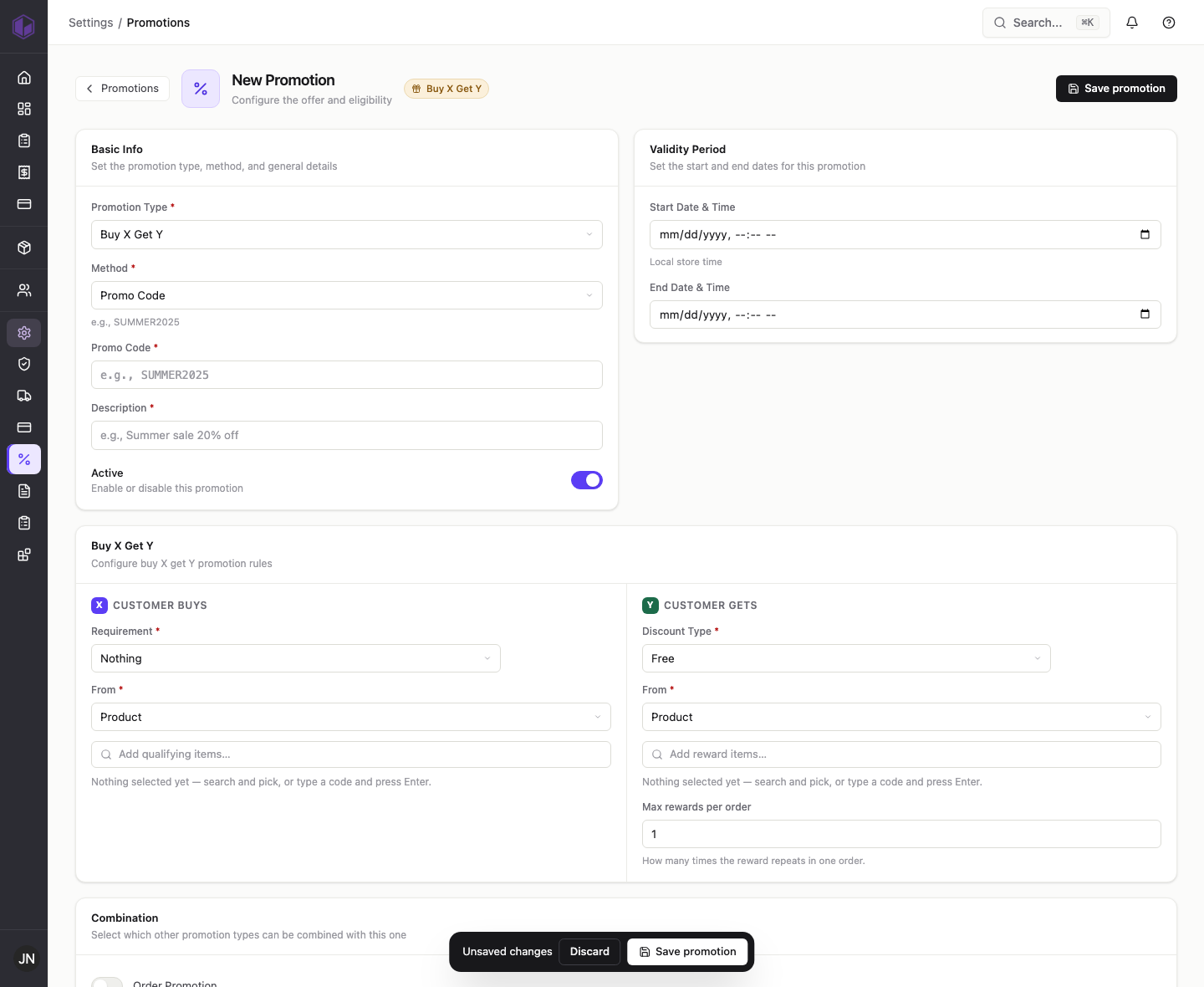
- Set Promotion Type to Buy X Get Y.
- Set Method to Promo Code and enter a code; add a Description.
- Under Customer Buys (the “X”), choose the requirement (a quantity of items or a purchase amount), whether it applies to a Product or a Category, and then search for and add the qualifying items.
- Under Customer Gets (the “Y”), choose the reward — a percentage off or free — whether it applies to a product or category, and add the reward items. Set Max rewards per order to control how many times the reward repeats in one order.
- Optional: set a validity period.
- Make sure Active is on and click Save promotion.
When a customer buys the qualifying items and enters the code, the reward items are added to their order free or discounted.
Internal notes (support team)
- Depends on the product picker, which has a known issue — see the item-promotion post’s internal notes. Buy X Get Y requires selecting both the “buy” and the “get” items, so if the picker cannot add items this type cannot be completed. Needs manual confirmation.
- Buy X Get Y correctly refused to save with no items selected, but it showed no error message explaining why — the form simply did not submit. A clear validation message would help.